Connect an Android device over adb
With adb, Wireway points the device at your Mac in one click, on any network, and shows which app sent each request. It works for a device on a cable and for an emulator. This takes about three minutes.
Wireway doesn't include adb. If you have Android Studio you already have it; otherwise run brew install android-platform-tools.
1. Open the Connect a Device window
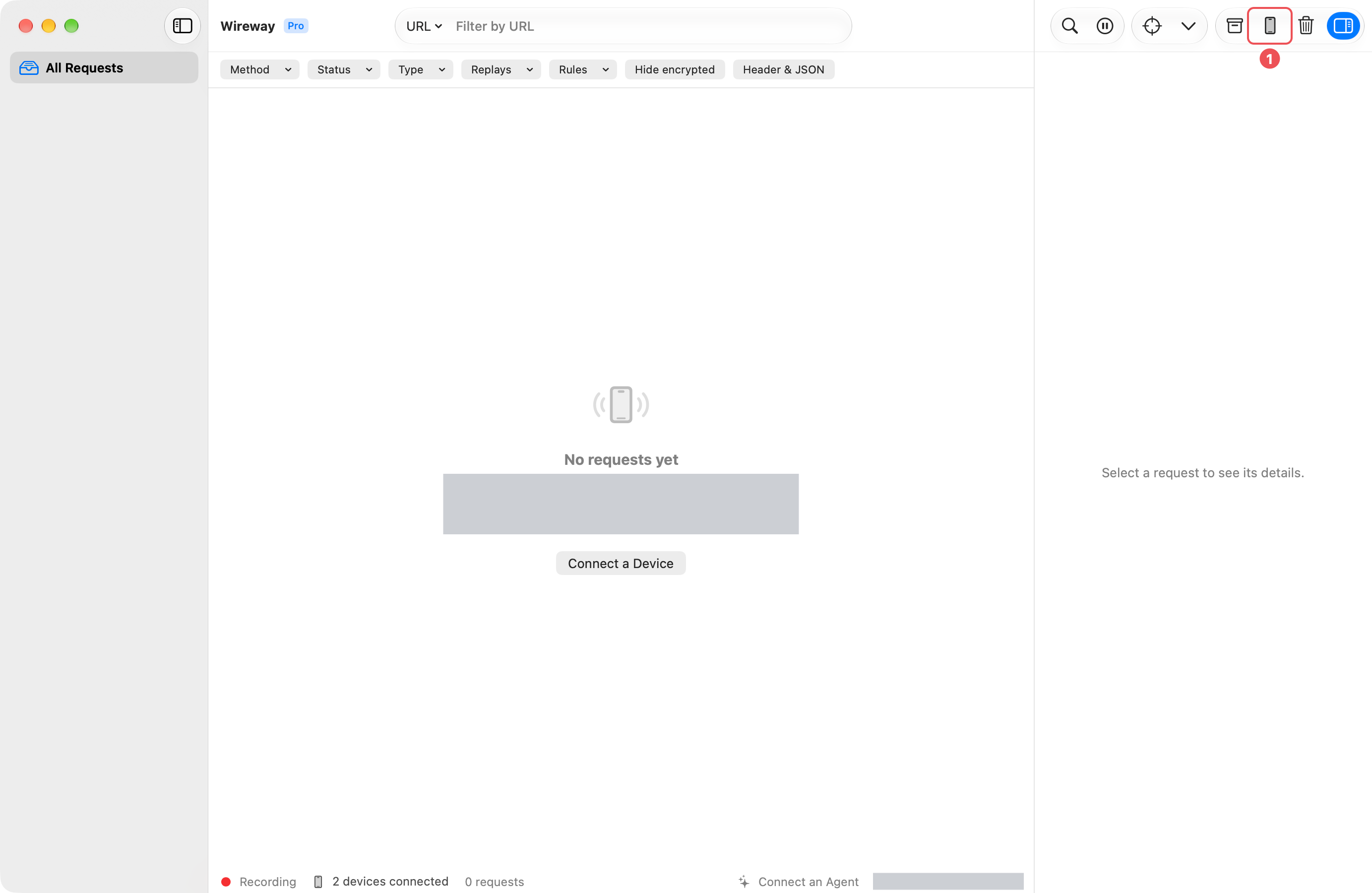
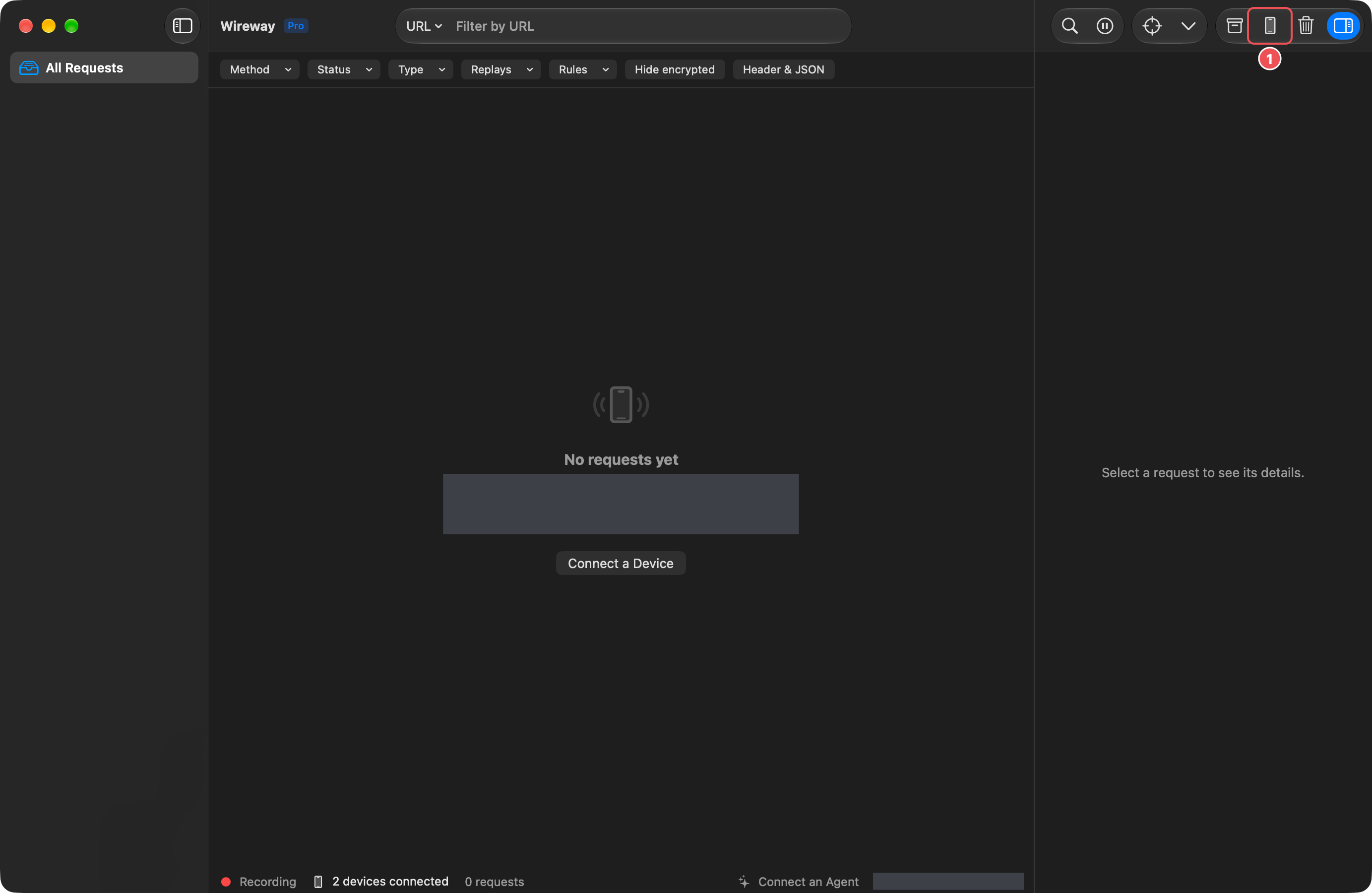
- Click Connect a Device in the toolbar marked 1. The button in the middle of an empty list does the same.
2. Turn on USB debugging
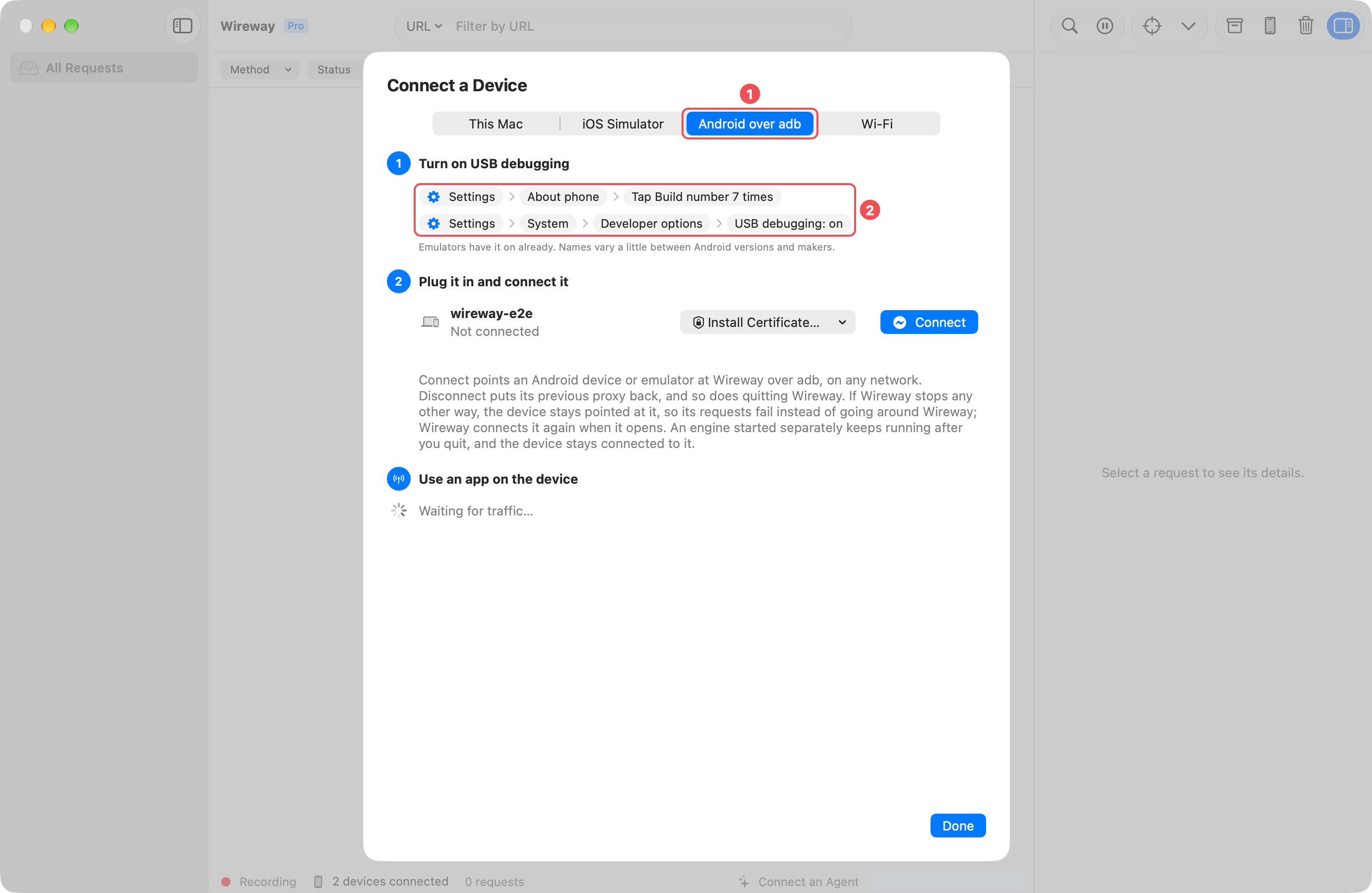
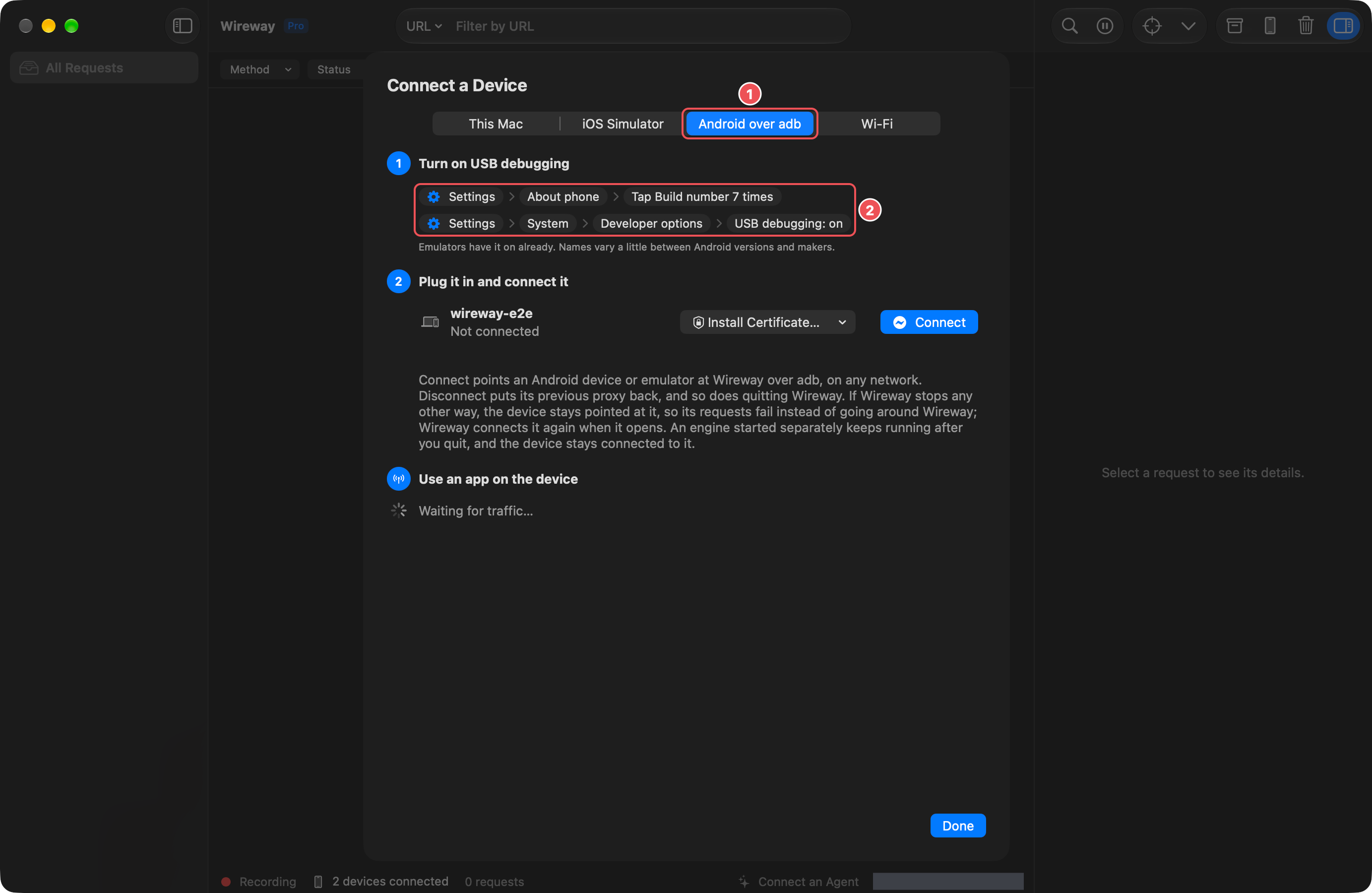
- Choose the Android over adb tab marked 1.
- On the device, open Settings, About phone and tap Build number 7 times. Then turn on USB debugging under System, Developer options marked 2. Names vary a little between Android versions and makers. Emulators have it on already.
- Plug the device in. It asks to allow your Mac: allow it.
3. Connect it
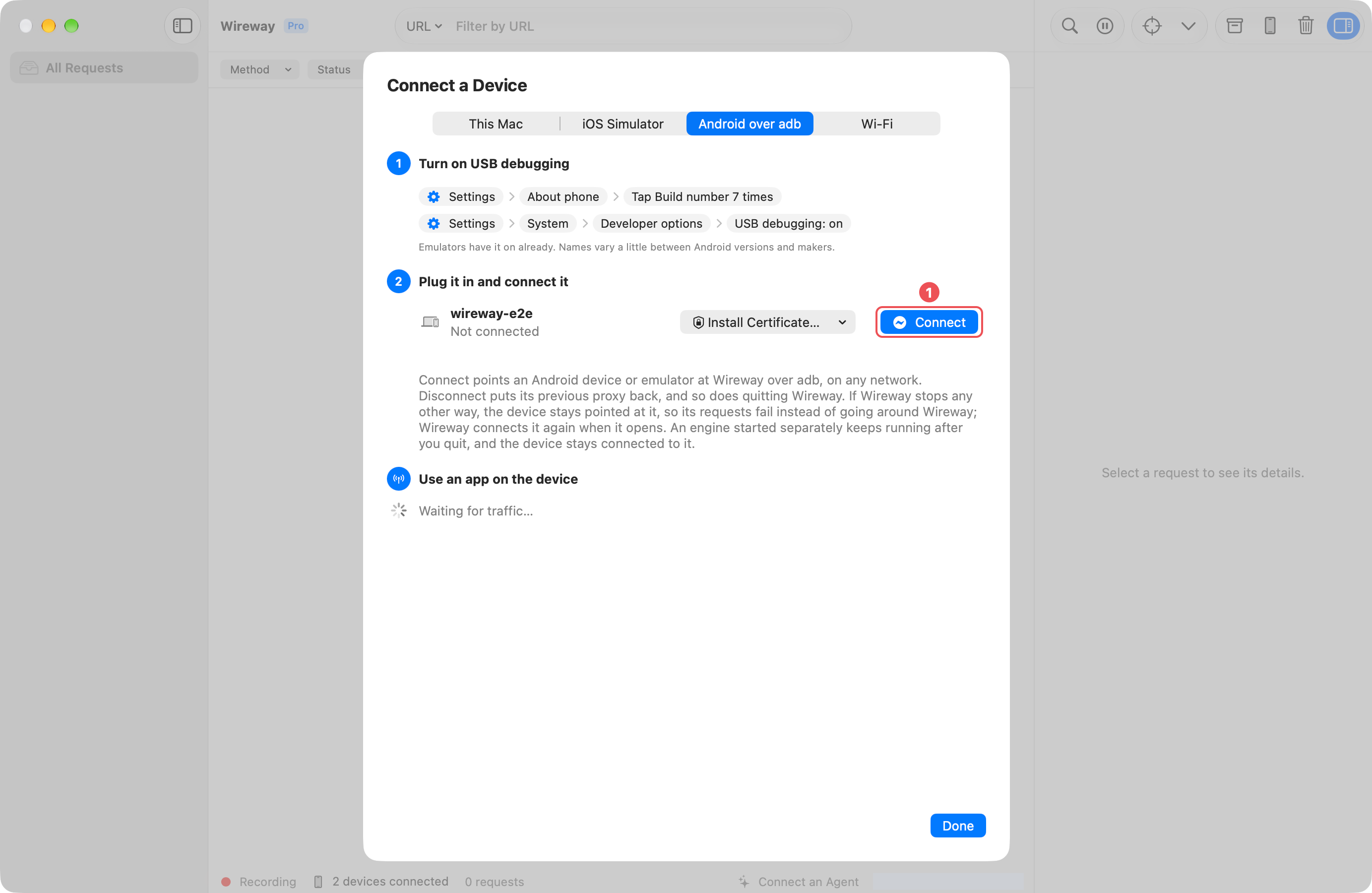
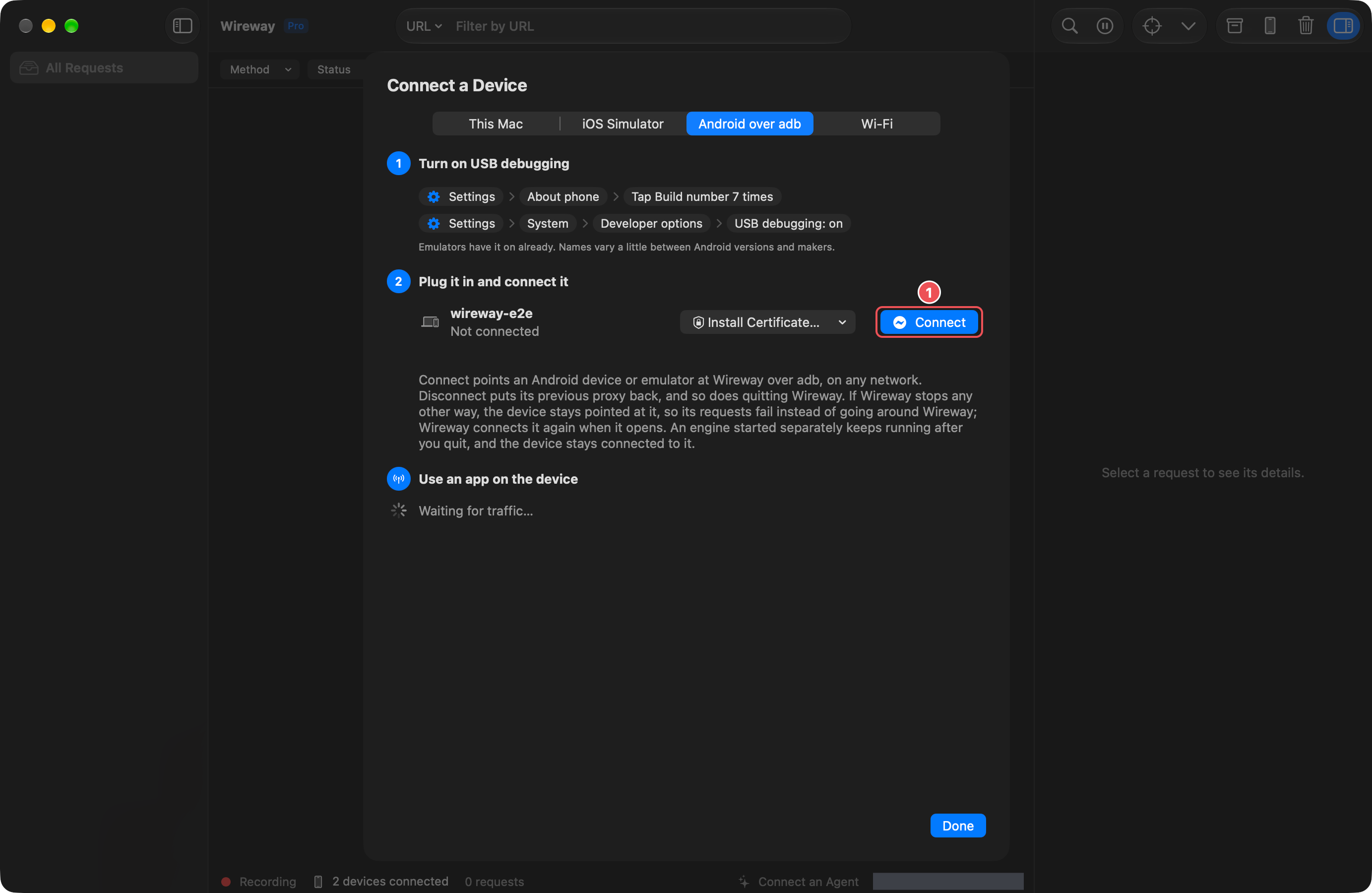
- Click Connect on the device's row marked 1. The row then says Connected over adband, under it, that each request says which app sent it.
4. Install Wireway's certificate
The certificate lets Wireway read HTTPS traffic. Install it once per device.
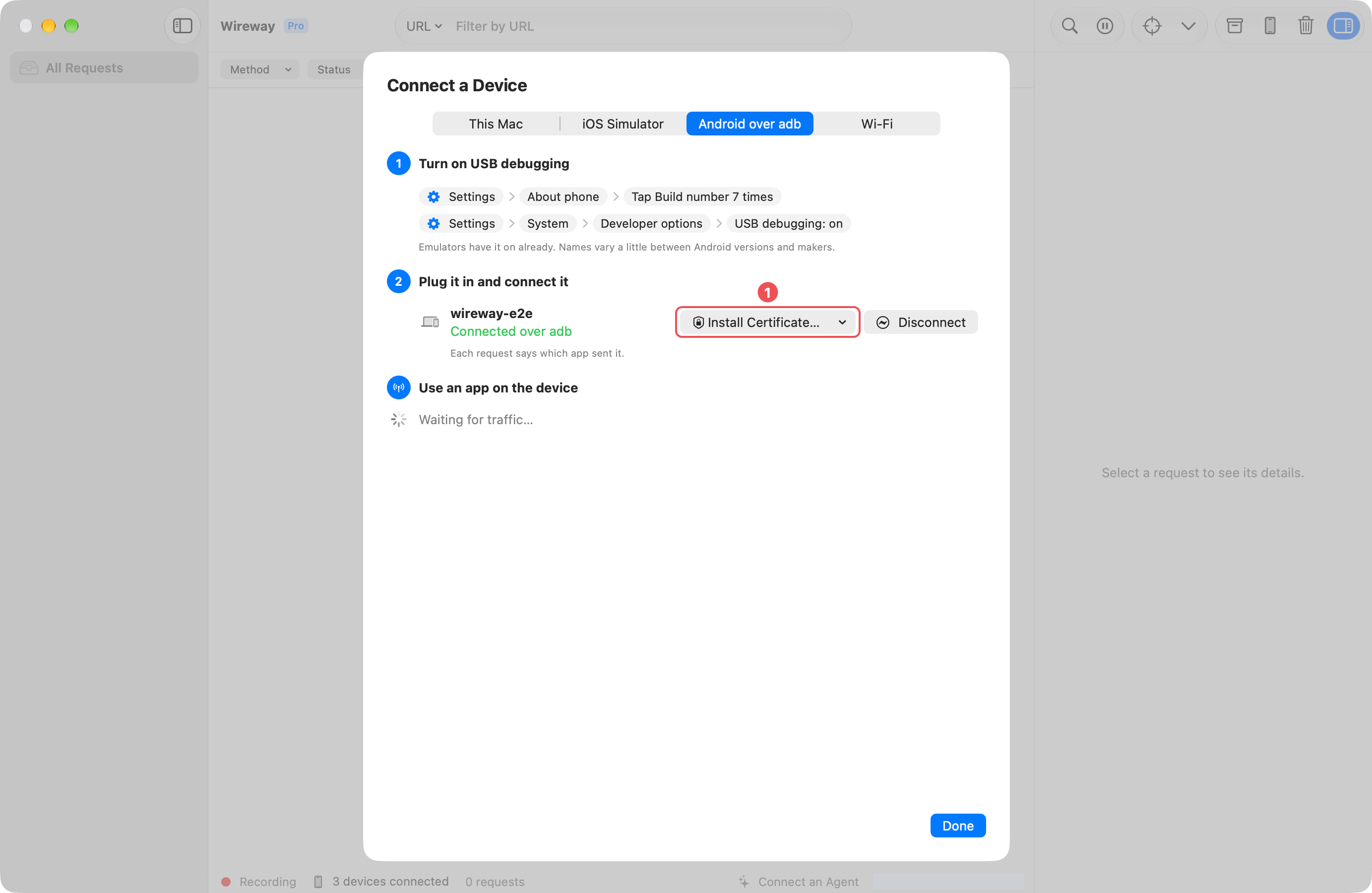
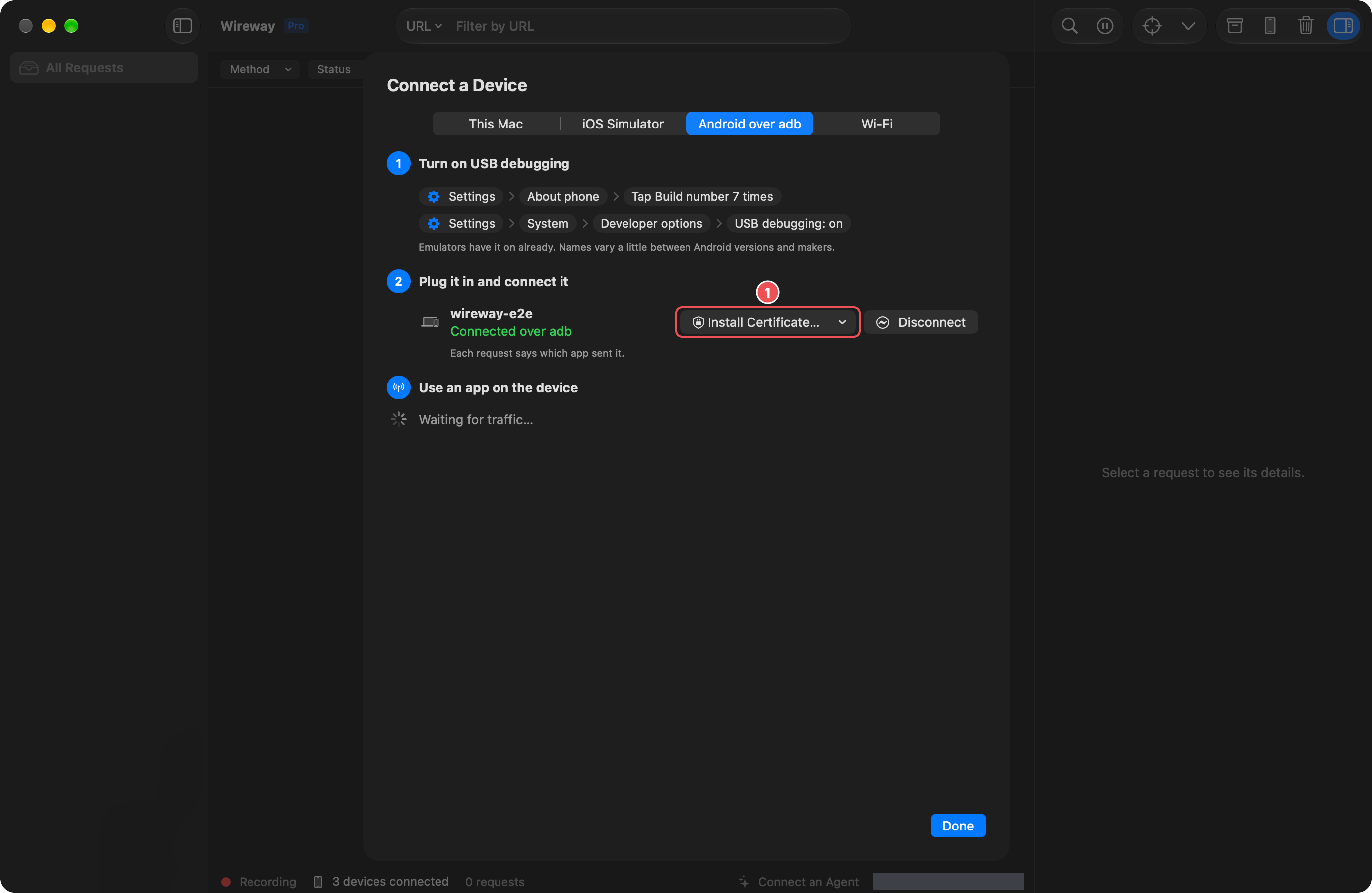
- Click Install Certificate… marked 1 and choose As a User Certificate…. Wireway copies the certificate to the device's Downloads folder as
wireway-ca.crtand opens the device's Security & privacy settings. - On an emulator, In the System Store (Most Apps) is quicker: it installs the certificate for every app and asks nothing on the emulator. A Google Play image can't use it and says so.
On the device
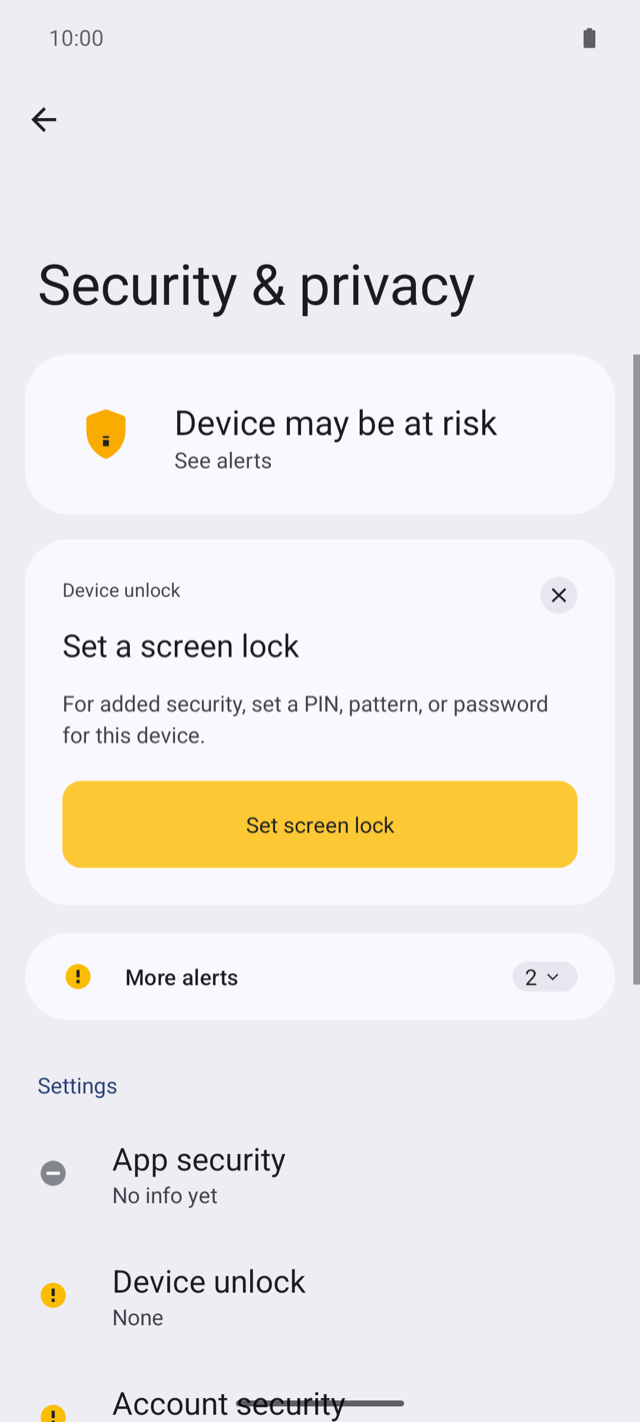
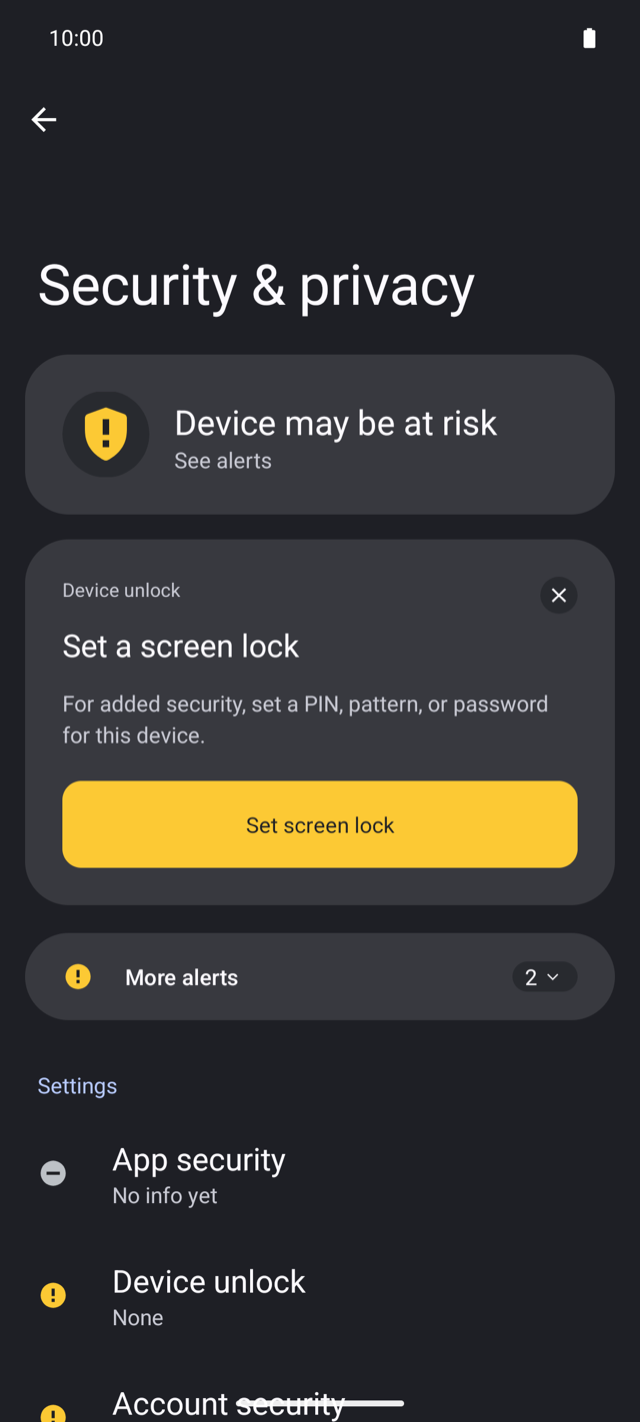
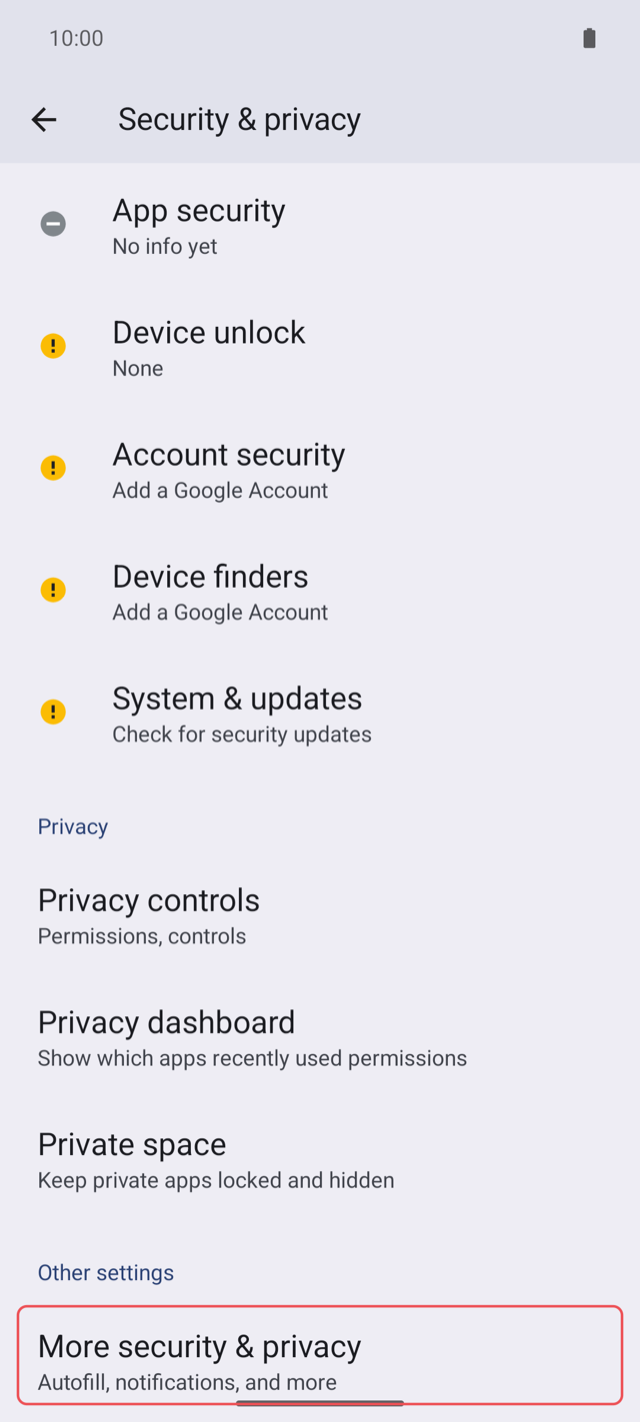
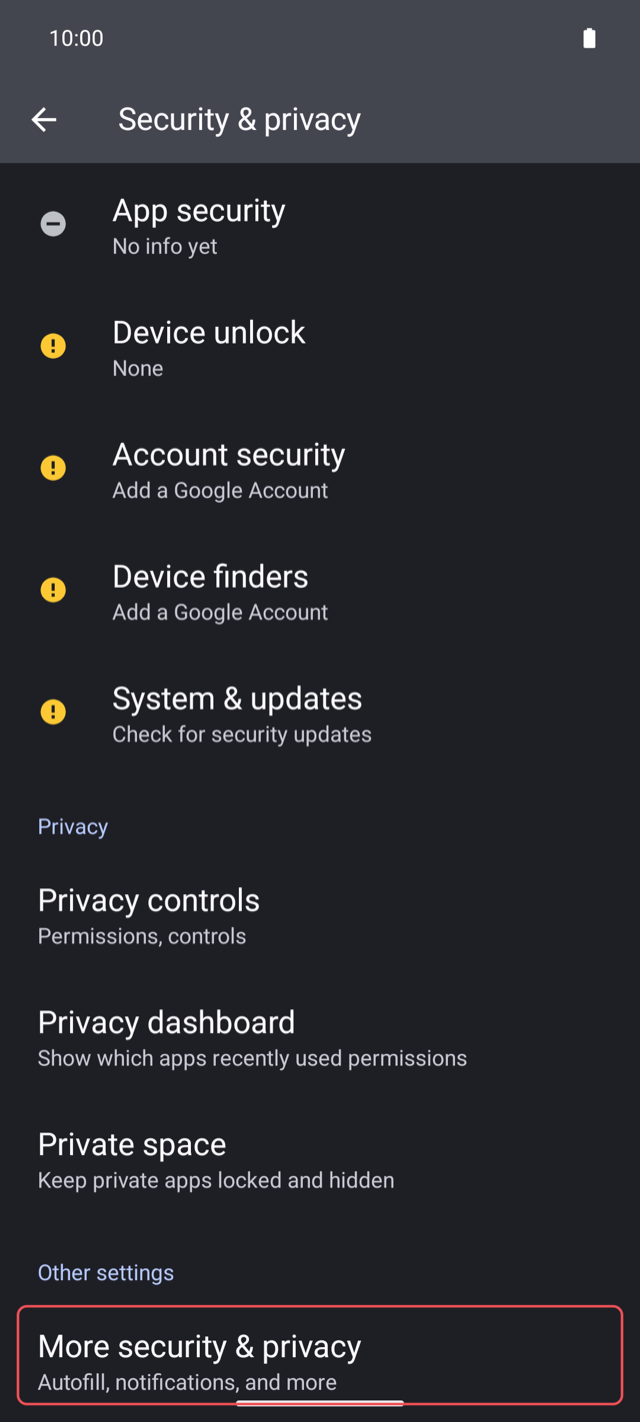
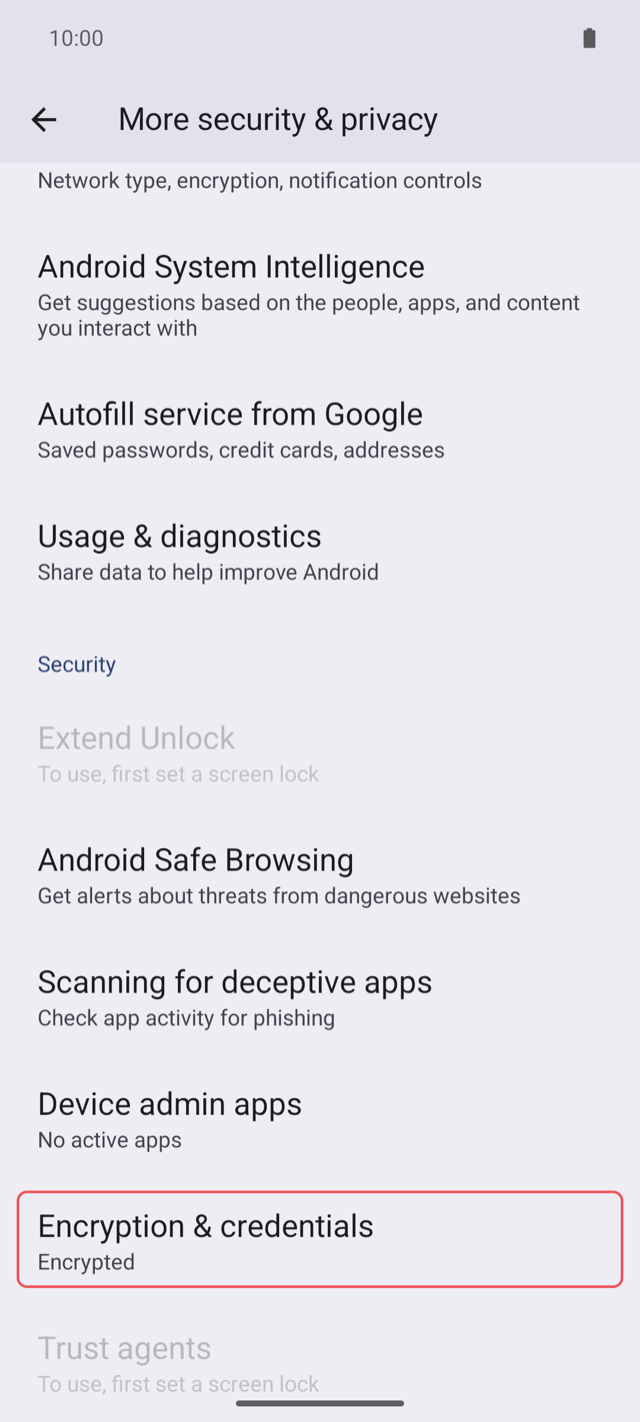
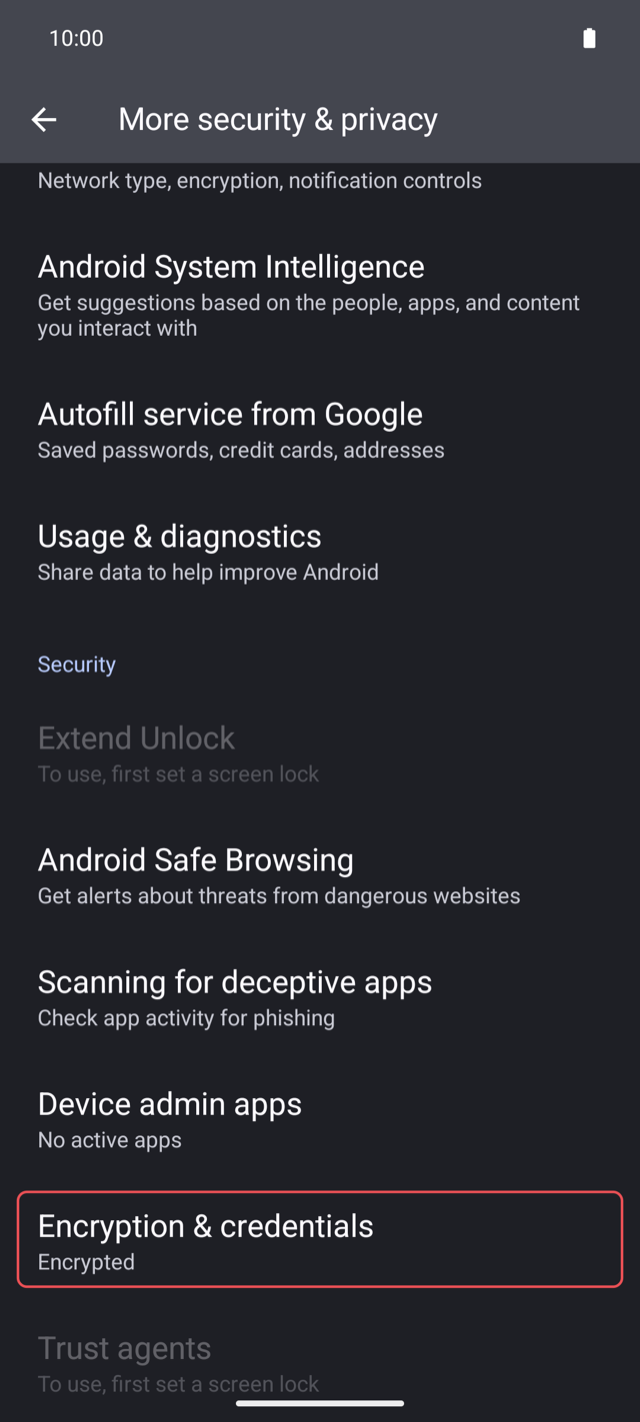
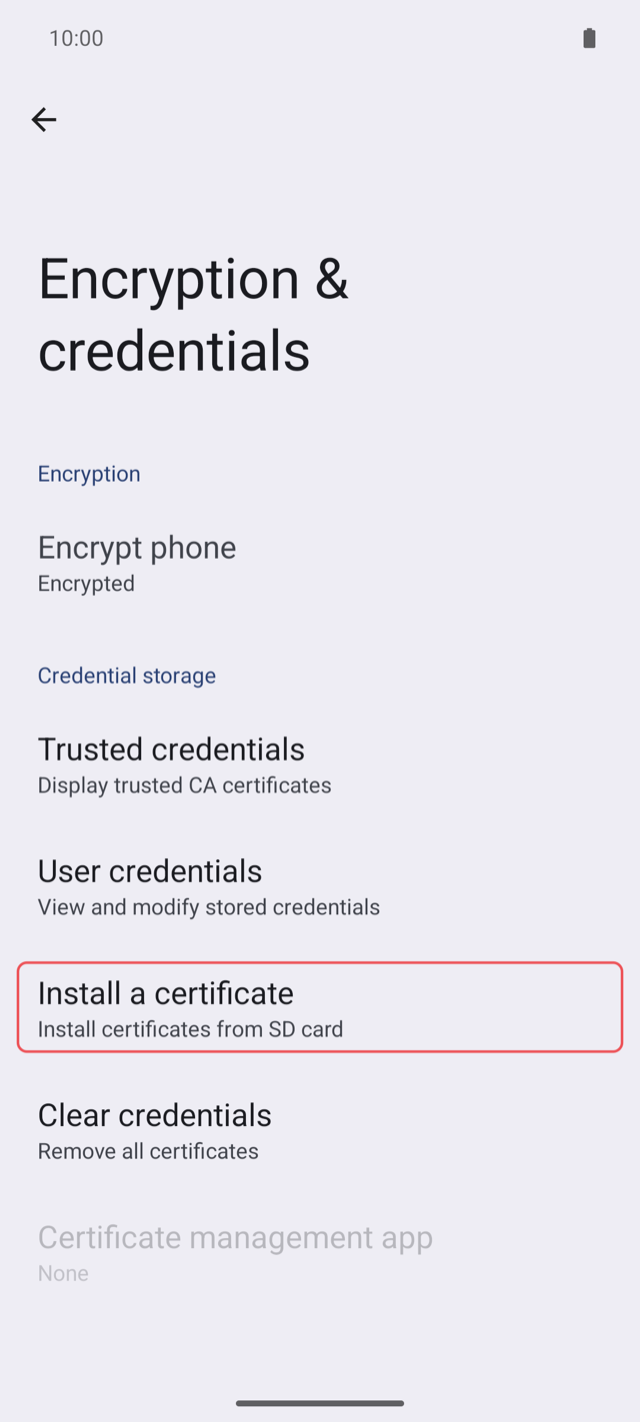
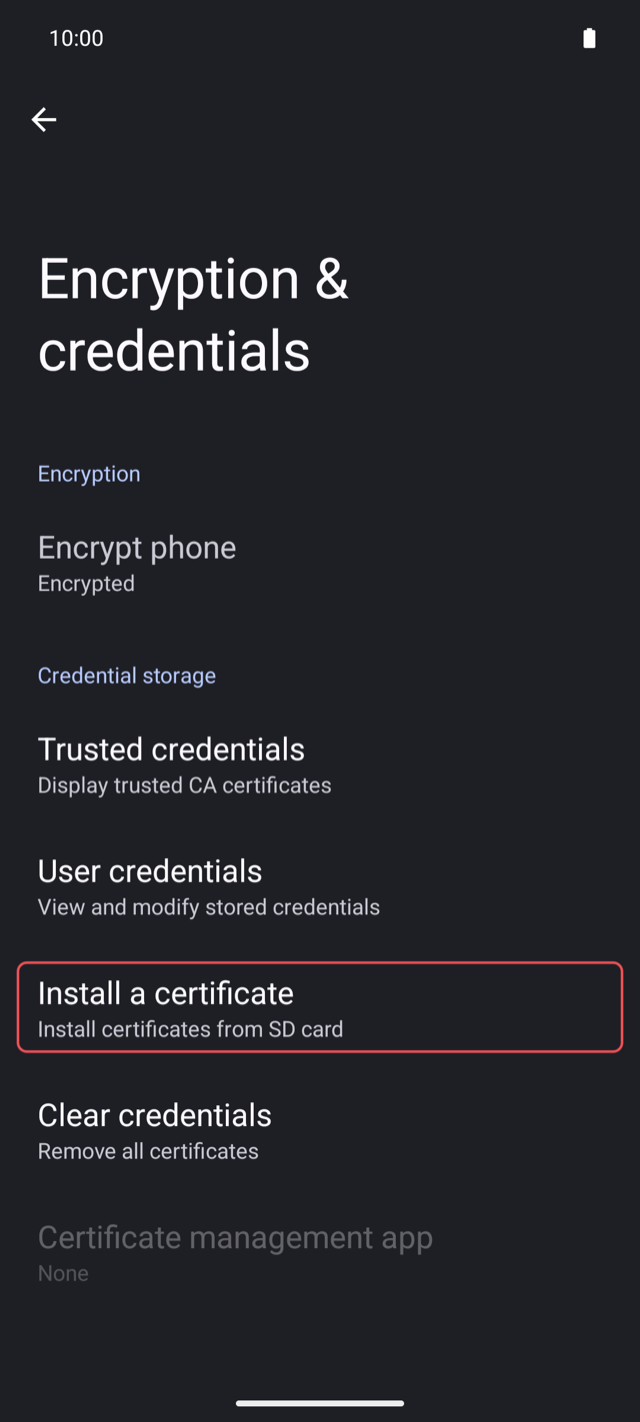
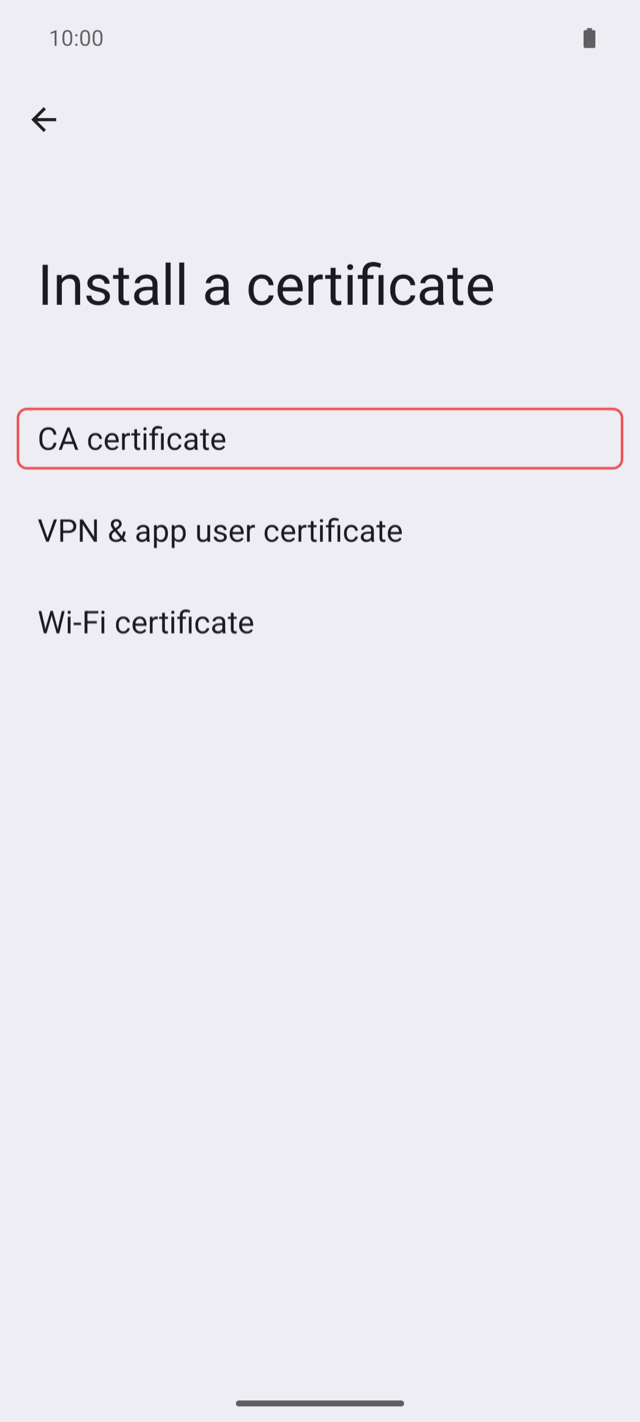
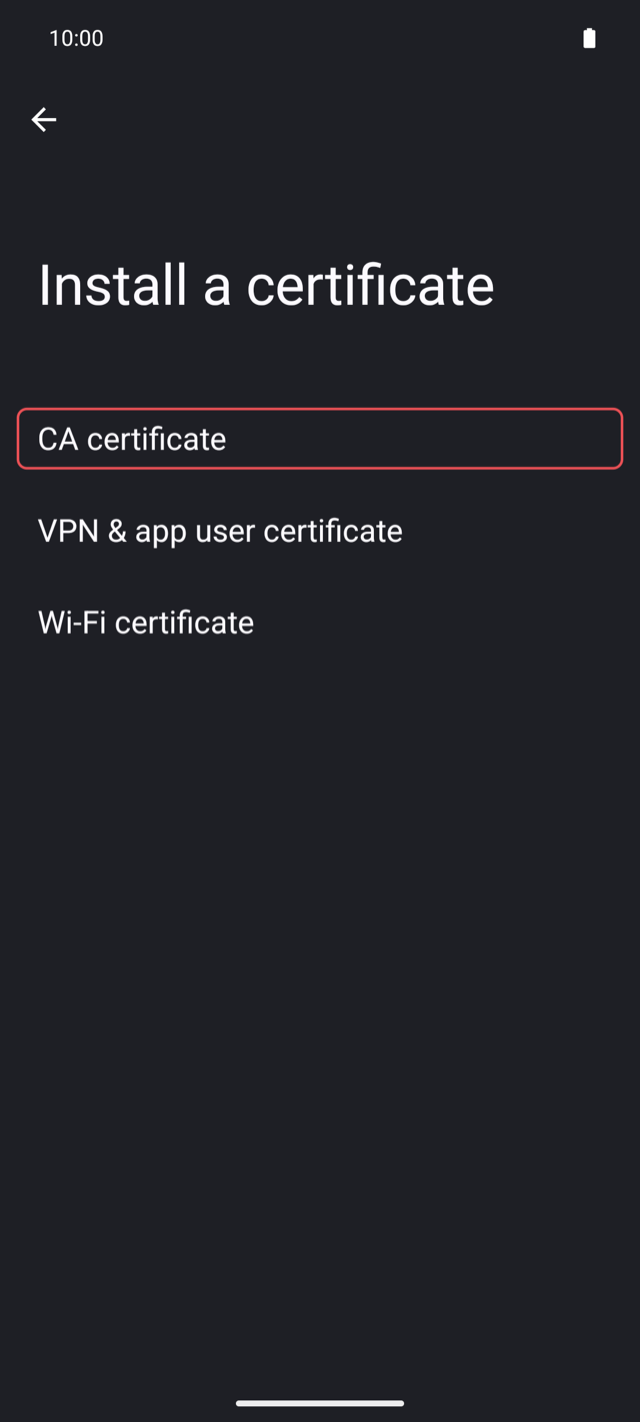
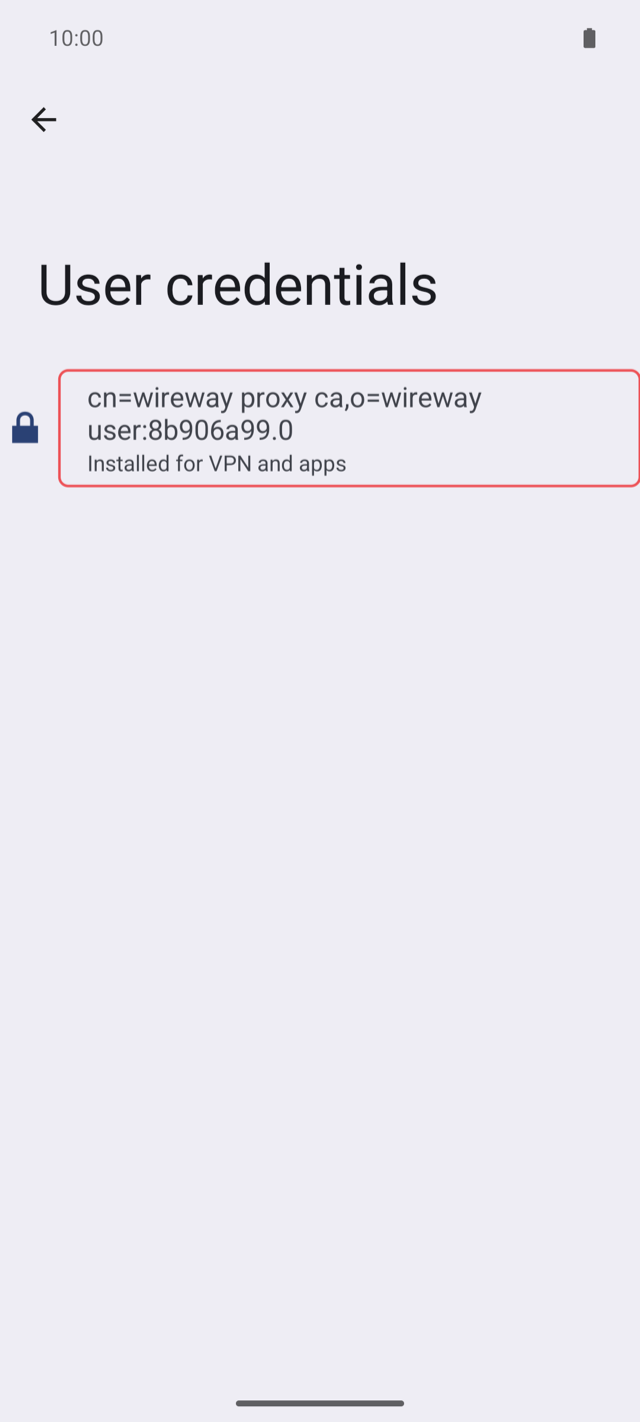
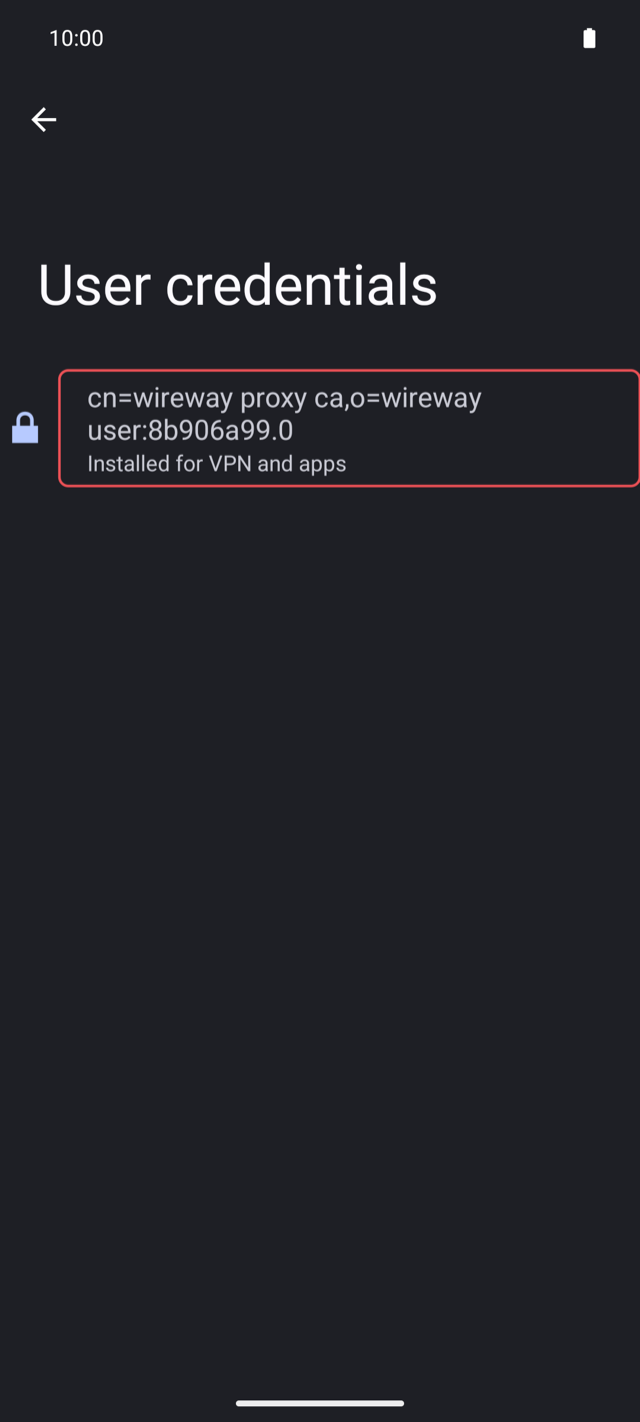
- In Security & privacy, scroll down and open More security & privacy, then Encryption & credentials, then Install a certificate and CA certificate. Names vary a little between Android versions and makers.
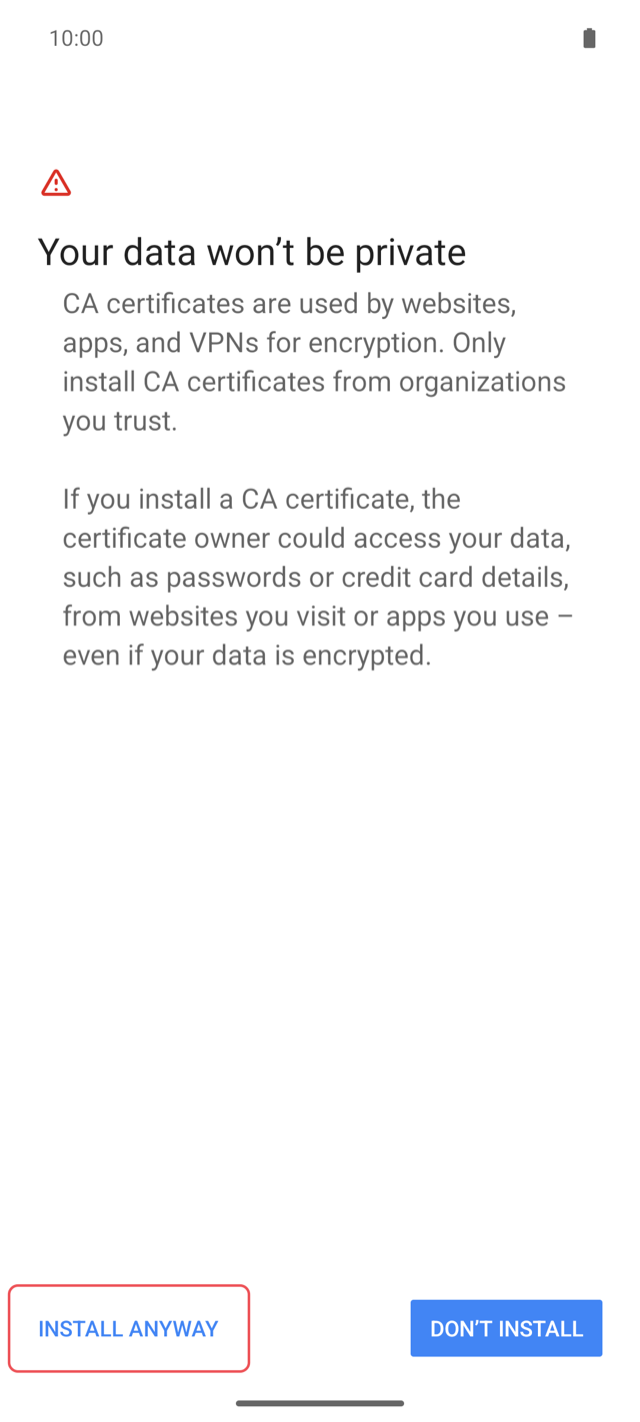
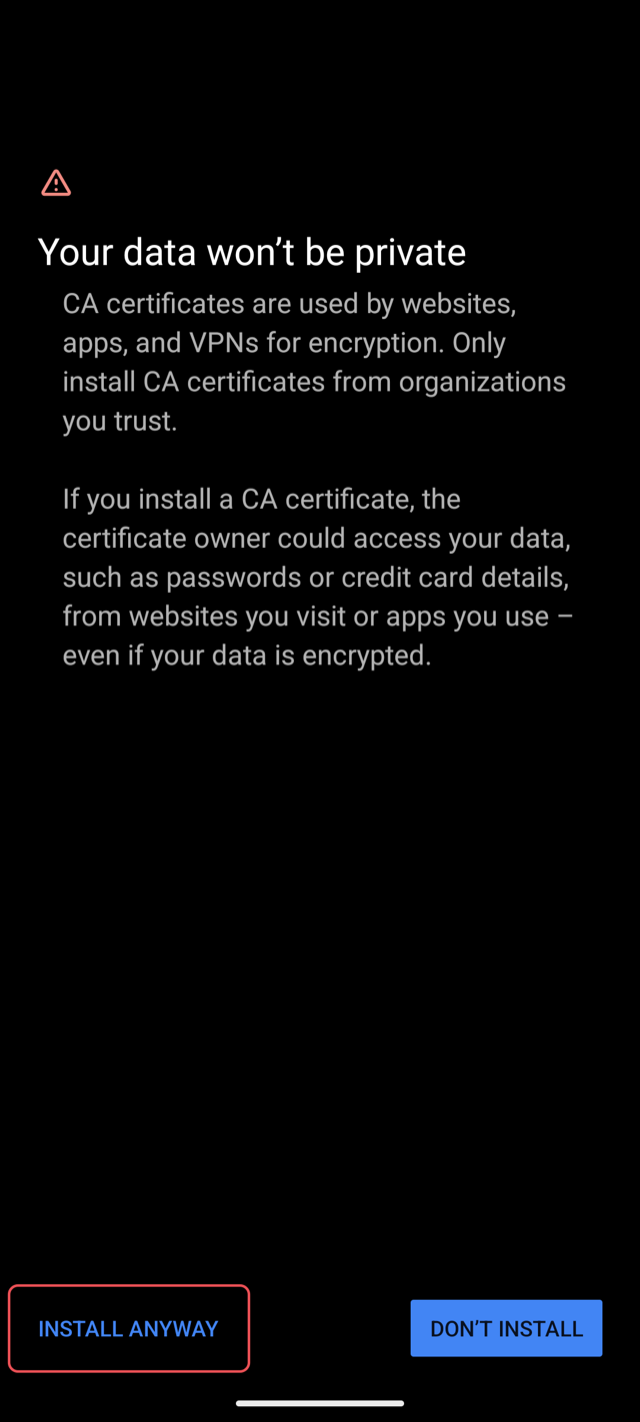
- Android warns that your data won't be private. Choose Install anyway: this is your own proxy.
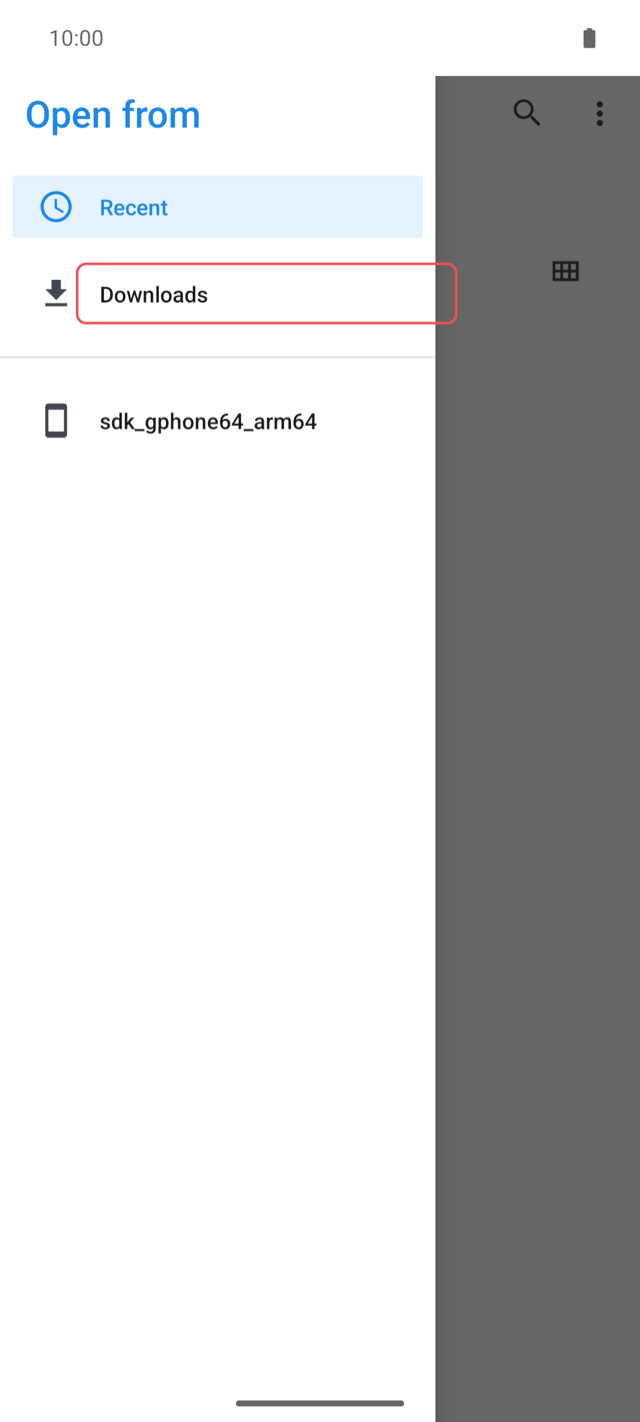
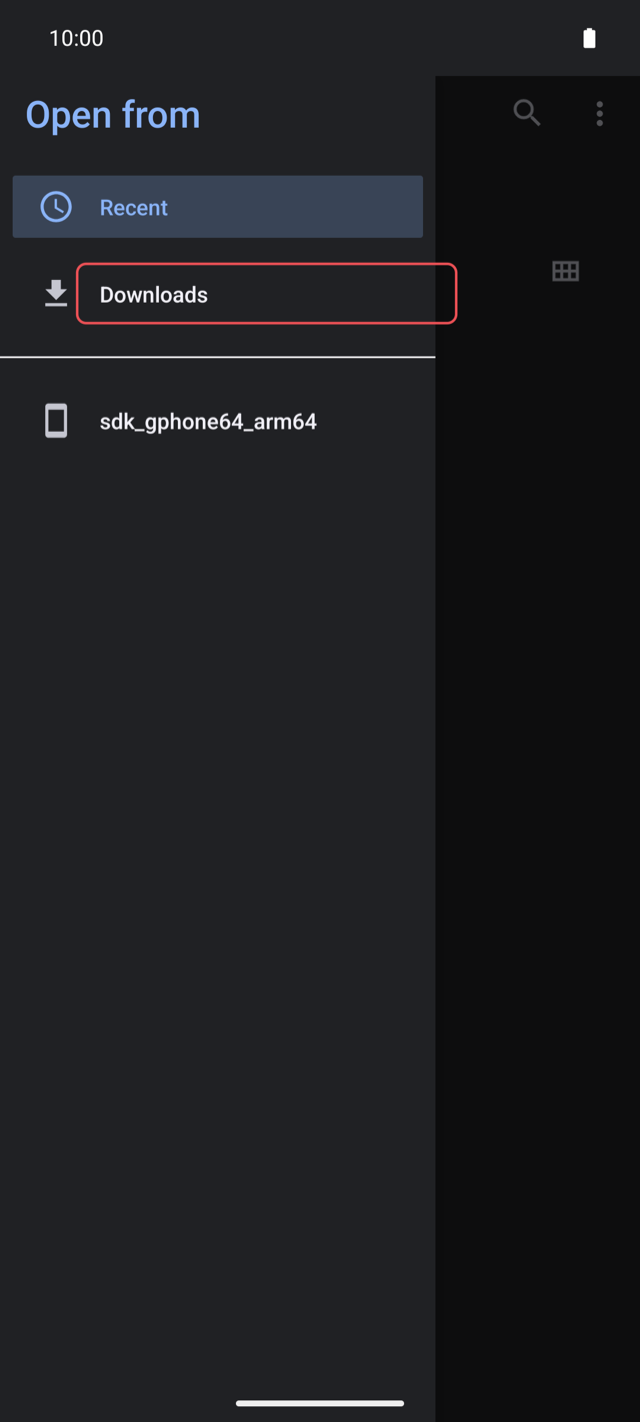
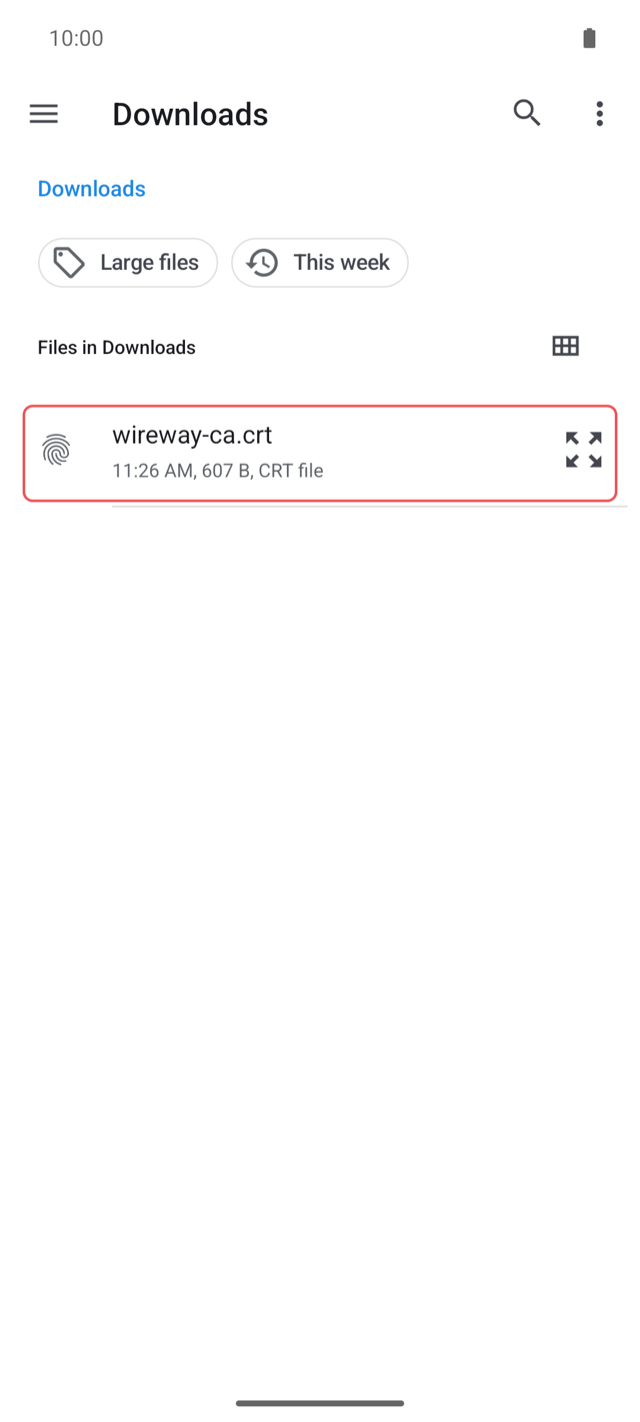
- In the file picker, open the menu, choose Downloads and tap
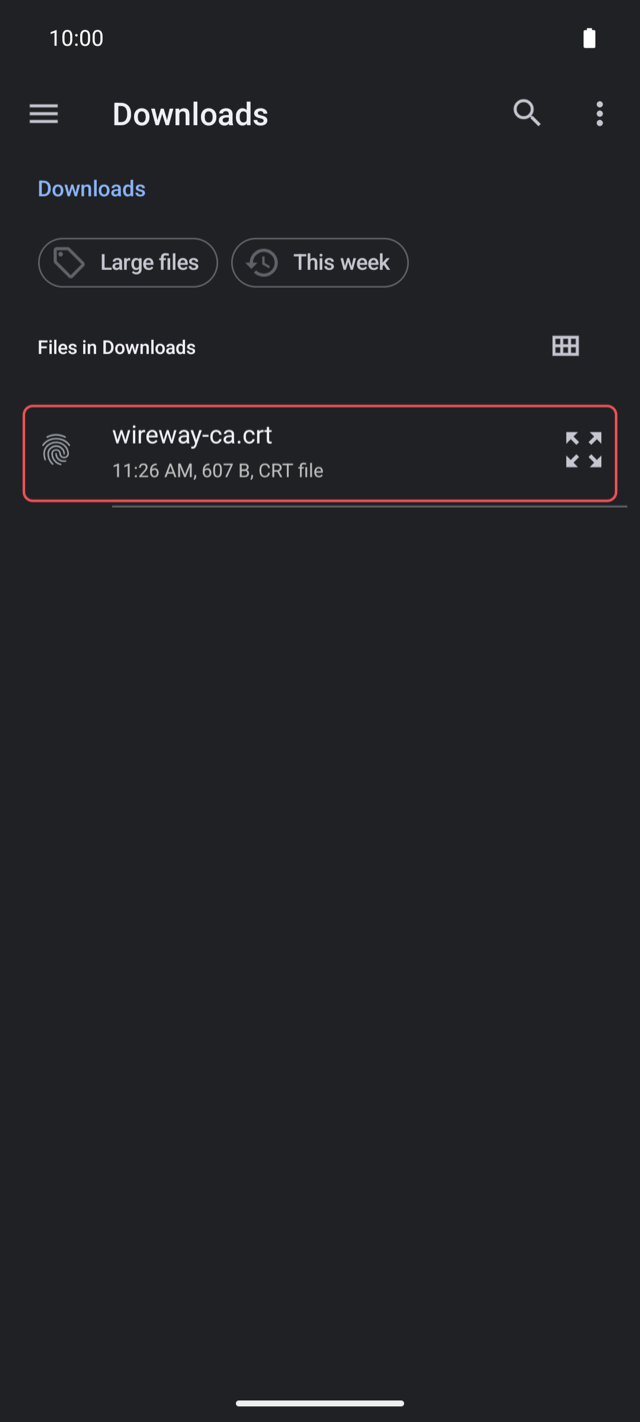
wireway-ca.crt. Don't tap the small preview icon at the right of the row: it opens a dialog that says the certificate must be installed in Settings. - To check, open User credentials: the Wireway certificate is listed there.
An app trusts a user certificate only if its network security config allows it, which is usually the case in debug builds. Apps that don't are left encrypted, so they keep working.
5. Use an app on the device
Open any app on the device. Its requests appear in Wireway's list within a moment, and the window shows that it has seen traffic. Click Done to close it; the device stays connected.